
May 2025
CCIT End-of-Year Message
As the academic year comes to a close, we just want to take a moment to celebrate everything you’ve accomplished. Your dedication to our students, your commitment to educational excellence, and your willingness to collaborate and grow with us through trainings and new initiatives have made such a difference.
Thank you for all the energy, heart, and passion you bring to your work every day. We truly value you and all that you do to support our students and our college community.
As you head into summer, we hope you find time to rest, recharge, and do the things that bring you joy. We’ll be planning over the summer to bring even more great opportunities your way in the fall. We can’t wait to continue partnering with you.
Wishing you a wonderful, restful summer!

Update: ThingLink Scenario Builder 2.0
ThingLink has released Scenario Builder 2.0—a faster, more powerful way to build interactive learning experiences.
Here’s what you need to know:
- Your current scenarios are safe. Anything created in the original Scenario Builder (version 1.0) will still work as-is. Learners can view them, and data will continue to be tracked.
- But editing is different. You will no longer be able to edit Version 1.0 scenarios. To make changes, you’ll need to convert them to Version 2.0.
- Conversion is easy. Just go to the ‘Scenarios’ tab in your ThingLink profile, switch to Version 1.0, and open the Thinglink you want to convert. Select Convert now. A new, editable 2.0 copy will be created (your original stays untouched).
- Heads up: The Version 2.0 copy is a new link. You will want to update any links you may currently use.
To learn more, visit Thinglink’s article, Converting Scenarios from Version 1.0 to 2.0.

Get the Most Out of TurnItIn’s AI Writing Detection
3 Easy Ways to Create Quiz Questions in Brightspace
D2L Brightspace gives DTCC instructors several flexible options for building quizzes. Whether you prefer a hands-on approach or want to save time with bulk uploads, there’s a method that fits your style:
Use the Quiz Editor (Manual Entry)
Build your quiz directly in Brightspace by manually adding questions one at a time. This method:
- Gives full access to Brightspace’s question types, formatting tools, and scoring options.
- Is best for customizing individual questions and feedback directly in the LMS.
Quiz Question Converter Tool (Spreadsheet Import)
Speed things up with a bulk-upload option:
- Format questions in a spreadsheet (CSV file).
- Import them into Brightspace to avoid repetitive clicking.
- Download the tool and see formatting instructions on the D2L Brightspace Community site.
Test/Quiz Question Generator (Text-Based Tool)
Prefer typing your questions in a simple format?
- Use Algonquin College’s web-based tool to create questions in structured text.
- Export your file as a CSV and upload it to Brightspace.
- Great for quickly generating large sets of questions.
Quiz Evaluation Experience
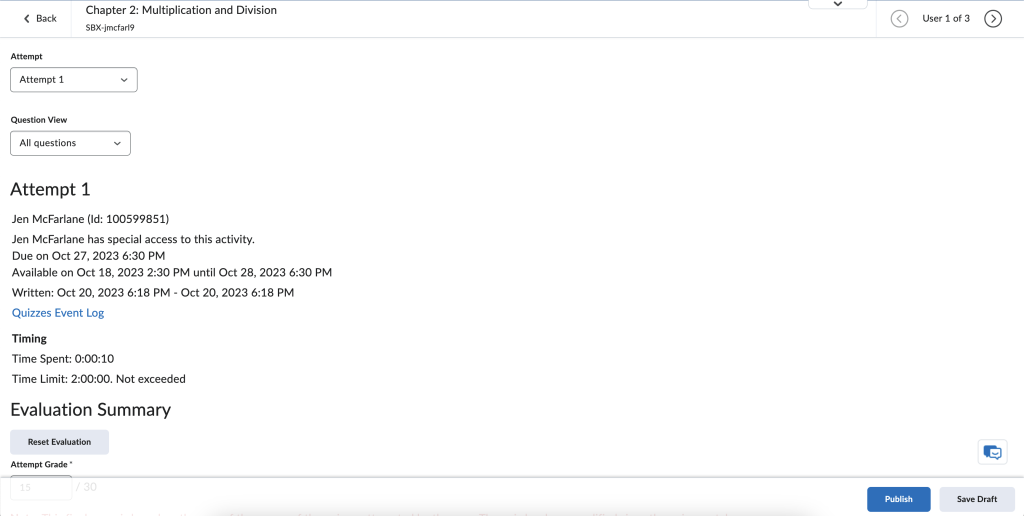
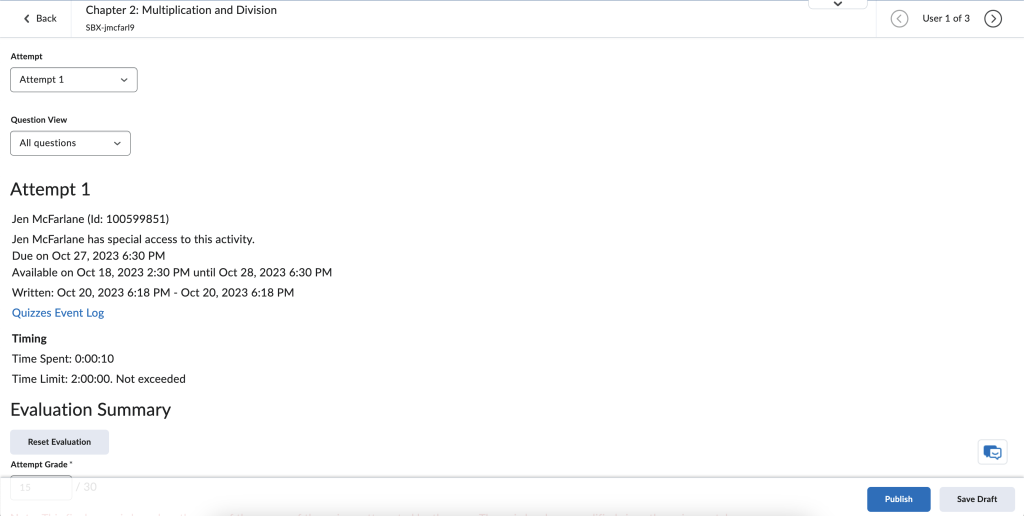
This July, you will see a change in how to evaluate quizzes in Brightspace. Starting with the July 2025 (20.25.07) release, the new Quiz Evaluation Experience will become the default for all users, and the opt-out option will be removed. This update enhances grading workflows, improves consistency, and ensures a smoother transition to the improved experience. Be sure to take advantage of the remaining time to familiarize yourself with the new features!
Old Experience
New Experience

4th Challenge - Alternative Text for Images
Writing Alt-Text Yourself
The Poet Training Tool from The DIAGRAM Center website offers free, self-paced training to help content creators make image descriptions more accessible in digital educational materials. It provides practical guidance, examples, and assessments for writing effective alt text for charts, graphs, maps, and other complex images.
WebAIM’s Alternative Text guide provides comprehensive best practices for writing effective alt text to ensure web images are accessible to users with visual or cognitive disabilities.
Get Help with Alt-Text
Claude AI, developed by Anthropic, includes an image analysis feature that allows users to upload photos for the AI to interpret and describe. While not specifically designed for generating alt text, Claude can provide descriptive insights about images, which can be helpful in understanding visual content. Be sure to verify the accuracy of its descriptions, especially when used for accessibility purposes, as AI can still make some mistakes.
Challenge
- Use the Accessibility Checker in Brightspace/D2L to locate images without alt-text.
- Use support from the Brightspace Community Alt Text for Web Page Images – Brightspace to correct any missing alt-text or to ensure that new images that are added have alt-text indicated.
CCIT wants to support you in creating accessible content. We invite you to check out our Instruction, Design & Technology (IDT) course, G19: Creating Accessible Content. Learn more about our IDT Certificate Program and course offerings on our website. You can also check out our Digital Accessibility MCC to earn a microcredential.

Zoom Into Engagement: Whiteboards & Polls
Zoom’s interactive tools can do more than just support your lectures—they can transform them. Whether you’re synchronously teaching online or in a HyFlex environment, here are two features worth exploring:
- Zoom Whiteboard – Use this collaborative space to spark creativity and engagement. Choose from templates, add sticky notes, draw diagrams, or even embed videos and documents to make your lesson interactive and visually dynamic. This tool is great for brainstorming, sequencing, or group activities.
- Polls and Quizzes – Want to check understanding or just energize your class? Zoom’s built-in polls (now with quiz options!) make it easy to gather real-time feedback, review content, or add a bit of fun.
In our recent Lunch & Learn, instructors explored these tools in action and shared ideas for making lessons more interactive. Try one in your next session and see how your students respond!

Broken Links and How to Fix Them
An all too common problem, broken links in courses are usually spotted when students try to access course materials or content and an error code pops up. Luckily, it’s easy to fix a broken link!
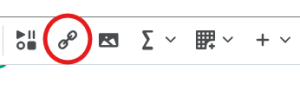
Before your course begins, go through your course and test out all of the links to make sure they’re correct. If a link is supposed to bring users to content outside of the course, like an article or YouTube video, you may need to copy the link again. Go to the webpage, copy the URL from the address bar. Find the broken link in the content and open the HTML Editor. Select “Insert Stuff” on the editor bar, then select “Insert Link”. Paste the URL that you copied and click “Insert”.

Sometimes, when a course is copied over from a previous course, the links will continue to send users to previous course content. If this is the case, you should find the broken link within your content and open the HTML Editor. Highlight your link and select “Insert Quicklink” in the editor bar. A pop-up will appear that will allow you to select the content within the course. Click the content and select “Save and Close”. Select your link to check if it is working correctly. It’s that easy!

Join CCIT for this summer's learning opportunities:
Summer Learning Opportunities
This summer, take advantage of a wide range of free or low-cost professional development opportunities designed to enhance your instructional strategies. Options include in-person sessions in Delaware as well as online videos, workshops, and readings from national sources.
At Delaware Tech
May 13 at 11:00 AM – Lunch and Learn: Making It Yours: Strengthening Instructor Presence in Pre-Built Courses
May 20 at 11:00 AM – Lunch and Learn Tech Spotlight: Engaging Learning Through Interactive Formative Assessments
May 28 from 9:00 AM to 12:30 PM – In-Person Learning Event on each campus
May 29 from 12:30 PM to 4:00 PM – Remote Professional Learning Event via Zoom
You can find more learning events at Delaware Tech by visiting the Professional Development Calendar.
Online
Innovative Educators offers Free Training for Higher Education Professionals (On-Demand and Live) with free options. Topics focus on student success, instructional strategies, mental health, DEI (diversity, equity, and inclusion), and technology integration in teaching. Free Training for Higher Education Professionals
Teach Access offers a series of videos to foster empathy, strengthen accessibility know-how, and empower viewers to support inclusive practices with confidence.Explore this playlist, 2025 Teach Access Student Academy, and be a part of building a more inclusive and accessible learning environment!
Harvard University’s Professional and Lifelong Learning portal offers over 100 free online for topics including computer science, data science, health, education, business, and the humanities. These self-paced courses range from introductory to advanced levels. All courses are accessible online at no cost, providing flexible learning opportunities for individuals worldwide.
Reading
This resource, Where AI Meets Accessibility: Considerations Higher Education!, from Teach Access and Every Learner Everywhere explores how AI can both support and challenge accessibility in higher education. It provides guidance, practical tools, and insights to help educators implement AI in inclusive ways, emphasizing the needs of people with disabilities and encouraging broader conversations around equitable tech use.

Teaching in Fast-Forward: Strategies for Accelerated Courses
Summer classes move quickly—but with the right strategies, you can help students keep up and stay engaged. Here are a few ways to support learning in shorter terms:
1. Prioritize and Trim
Focus on essential learning outcomes. Streamline content to emphasize core concepts, skills, and assignments that deliver the most impact. Less really can be more in a compressed timeline.
2. Set the Pace Early
Use the first class or module to clearly outline expectations, due dates, and workload. Encourage students to map out their calendars so they’re ready to hit the ground running.
3. Chunk the Content
Break up large topics into smaller, focused segments. Use microlectures (5–10 minutes), checklists, or quick comprehension checks to keep students moving steadily through the material.
4. Stay Present
Frequent, low-stakes communication—like weekly announcements, check-in emails, or short videos—helps students stay connected and reduces the sense of isolation that can come with fast-paced online courses.
5. Build in Reflection
Even in a short course, reflection is powerful. Quick prompts like “What’s one thing you learned this week?” or “What’s one question you still have?” help reinforce learning and encourage metacognition.
View the accessible version of this interactive content

Cleaning Junk Files from a Course
Have you ever tried to look for a file in your course and had to search through the hundreds of files that have accrued over the semesters? We are pulling out one of our favorites from the archives this month: Course Cleaning Trick.
This video walks you through the process of cleaning up your course in D2L’s Brightspace to remove all the old videos, images, and documents that are no longer used, but still living in your courses.

Open Educational Resources
This interactive ThingLink provides a quick and accessible overview of Open Educational Resources (OERs). It answers common questions such as what OERs are, where to find high-quality materials, how to properly attribute OERs, and how to evaluate them for your courses. Use the hotspots to explore tips, tools, and resources that can support your use of OERs in teaching.
Click here to view the accessible version of this interactive content