Learning Management System (LMS) Procedures and Guidelines
Use the tabs below to review the course management process, minimum usage requirements, and procedures for user management and access.
Live Courses
A live course is a course used by faculty and students during the semester.
All live courses must be created in Banner first. Course shells are then automatically created in D2L Brightspace based on Banner data. Verify that Banner information is accurate, including instructor assignments. If an instructor has not yet been assigned, enter STAFF, STAFF.
Course shells are available to faculty on the following dates:
- Fall: March 15
- Spring: October 15
- Summer: March 15
Once the course shell is available, faculty can begin preparing course materials in D2L Brightspace.
Student enrollments sync from the SIS to D2L Brightspace daily after registration. Courses are not available to students until the official start of the semester unless the faculty member updates the course start date in Course Admin. Do not change the course end date because this may affect Course Evaluations.
SBX (Sandbox) Courses
SBX (sandbox) courses are provided for all faculty so they can practice using the LMS and build course content with out affecting live courses.
All faculty should have an SBX course. If you do not have an SBX course, please submit a support ticket.
DEV and Master Courses
To support quality course design and a consistent student experience, collaborative course development takes place in a DEV shell before content is moved into a Master shell. This process gives faculty and support teams space to build, review, and refine course content before it is finalized.
A DEV course is the working version of a course. It is used to create new content, make revisions, test updates, and support the course review and development process.
A Master course is the finalized source version of a course. Once updates in the DEV shell are complete, approved content can be moved into the Master shell to support consistency across future course offerings.
This approach helps:
- support course quality and accessibility
- provide a clear development workflow
- maintain a consistent course foundation
- make future updates easier to manage
For a visual overview of the DEV-to-Master process, review the ThingLink provided below.
Key Takeaways:
- Use the DEV shell for development and revisions.
- Use the Master shell as the finalized course version.
- Make major updates in DEV before transferring them to Master.
- Contact CCIT or follow the established request process if you need assistance.
Request Process
To request a DEV Course, submit a support ticket with confirmation of the Department Chair and Instructional Collaboration Group Dean of Instruction approval. Please include the course number and name in the ticket. CCIT will request the DEV Course for courses that are part of a course design with CCIT.
DEV courses are named using the following naming convention: DEV-DEPT-Course-Course#-Course Name. (EX: DEV-BUSN-BUS-101-Introduction to Business)
Once the DEV Course is approved for use by the Instructional Collaboration Group (ICG), the designated course lead should submit a ticket for the course to be copied into a Master course. The ticket should include confirmation from the ICG. Include the names of faculty who need access to the course if they do not already have department-level access.
Course Archive Process
All live courses older than 6 consecutive semesters will be moved to the Archive semester. This will help Delaware Tech maintain an optimal learning environment within the LMS. Administrators, Department Chairs, and faculty will continue to have access to archived courses; however, they will be located in the Archive-Semester rather than the original semester.
Course Reset Process
Resetting a course returns it to its original empty shell. All faculty can reset their own SBX courses. Only Department Chairs, Instructional Coordinators, and CCIT can reset live courses.
Before resetting a course, confirm that you are in the correct course and that there is nothing in it that you need to save. Resetting a course will permanently delete the data. This cannot be undone by you, IT, or D2L Brightspace.
Follow the steps below to reset your course.
- Select “Course Admin” from the “Admin” drop down on the navigation bar at the top of the screen.
- Select “Course Reset.”
- Select the checkboxes next to “Reset course content, activities, associated files, user grades, user progress, and interaction data” and “Course homepages, navbars, and widgets“. Then, select “Reset Course.”
- Select the checkbox next to “I am aware that resetting this course cannot be undone. I would still like to continue to reset the data in this course.” Remember, once the data is deleted, it cannot be restored by IT Services or D2L Brightspace. Once you have confirmed you want to reset your course, select “reset.”
Viewing Grades After Unenrollment
If you need to view a student’s grades after unenrollment, use the steps below.
- Go to the Class List in the course.
- Choose “Enrollment Statistics” at the top of the page (the third button from the left).
- Scroll to the bottom of the “Enrollment Statistics” page until you see the heading “Withdrawals.”
- Next to the student’s name, select the down arrow and choose “View Grades.”
This tool also allows you to see when the student last accessed the course and when they withdrew. If you need more detailed information about an unenrolled student, submit a support ticket.
LMS Minimum Guidelines
Delaware Tech’s LMS Minimum Guidelines ensure consistency across all D2L Brightspace courses. These guidelines help create a clear and accessible learning environment for students.
Guidelines for All Courses
Students are to be provided access to the College’s LMS, in which faculty are expected at a minimum to provide the following:
- Link to the current, College-approved course syllabus.
- Instructor contact information, including student hours and expected response time for communication (e.g. questions from students, feedback on assignments, grading of assignments).
- Course policies, such as late work, assignment revision, lab expectations, proctored exam procedures, etc.
-
A complete schedule of all major assignments and other important dates (field trips, exams, etc.).
- Wherever possible, course content that is compliant with accessibility standards and accommodates the use of assistive technologies (i.e., alt tags for images, closed captioning and/or transcript for multimedia, etc.)
-
Detailed evaluation measures to explain how students’ final grade will be calculated.
- Up-to-date grades posted in the LMS gradebook throughout the semester, including grades for both individual assessments and the current course grade.
- Academic departments may set minimum content expectations for courses in the LMS.
Distance Education Courses
In addition to the guidelines stated above, distance education courses must also include these items:
- Communication Plan
- Course Orientation
- Links to Student Resources for Learning, Technology, and Student Support
LMS minimum usage expectations for distance education courses are described in the Collaborative Course Review’s Quality Assurance Rubric as described in Appendix G of the Curriculum Guidelines.
User Management and Access Procedures
- All users of the LMS must access the system through a designated account which will be issued by Information Technology Services (IT) and is the same as the user’s Delaware Technical Community College network username and password.
- The instructor(s) of record and students enrolled in a course as listed in the student information system (SIS) will have access to the course site in the LMS. The SIS will add new students and remove students who withdraw or are withdrawn from the course or College.
- The instructor of record may submit to the Department Chair (or equivalent) or a designee a request for the LMS System Administrator to enroll additional non-student users to a course and specify that user’s role.
- For the purposes of program review and assessment of student learning outcomes, Deans of Instruction, Department Chairs (or equivalent) or their designees, and Assessment Coordinators will have access to view the usage reports, learning outcomes reports, and analytics pages for courses within their department/program.
- Access to the LMS will be disabled for users who display inappropriate behavior, per the College’s Acceptable Use of Electronic Networks policy and other policies that define appropriate conduct for employees and students.
User Roles
Users of the LMS are assigned roles with different levels of access.
Department Chair & Instructional Coordinator
These roles are assigned by CCIT. If you are a new department chair, instructional coordinator, or in an equivalent role, make sure that the DOI office has submitted a request to CCIT to provide you with these permissions. If you do not have access to all courses in your department, it means that you have not been assigned the appropriate role in D2L Brightspace. Contact your DOI office to request that they submit a support ticket.
These roles DO NOT have the permission to add instructors or students to courses; this is all done through the Student Information System (SIS). The department chair & instructor coordinator roles, however, can add individuals as course builders so that instructors are able to collaborate, mentor, and support each other. See below for more information about course builders.
Note: Because D2L Brightspace only allows for an individual to have one role in a specific course, if a DC/IC is teaching a course, then the only role they will have in that course will be instructor. They will not have the additional permissions that they typically have as a department chair/instructional coordinator.
Instructor
This role is assigned by the Student Information System (SIS). The information is then communicated from SIS to D2L Brightspace. A person should only have the instructor role in a D2L Brightspace course if they are teaching the course and will be evaluated at the end of the semester. A person must be listed as the primary or secondary/co- instructor in the SIS for them to have the role of instructor in D2L Brightspace.
Should you have the instructor role in a course?
- Are you actively teaching the course and will students be evaluating you at the end of the semester? If yes, then you should have the instructor role.
- Do you need access to the course in the SIS simply to manage enrollments? If yes, you DO NOT need the instructor role and should indicate you are the DC/IC when you submit your schedule information.
- Do you need access to courses within your department to manage faculty? If yes, you DO NOT need the instructor role; your department chair role will allow you access to all courses in your department.
Note: If an instructor has not yet been assigned when the course is created in SIS, then the instructor should be listed as Staff, Staff. The department chair’s name SHOULD NOT be used as a placeholder for the instructor. When department chairs are used as placeholders, it creates access issues in D2L Brightspace once the actual course instructor is assigned.
Leader
This role is strictly limited to DEV, Master, and SBX courses. Leaders have the ability to enroll other leaders, DEV Course Builders, students, and DEV observers. It is a powerful role in a course and as such is limited to only DEV, Master, and SBX courses.
Course Builder and DEV Course Builder
This role can be assigned by a department chair in the department where the course is offered. For example, a math department chair can add course builders to any math course at the College.
Course builders have the same permissions in the course as an instructor, but they do not receive a course evaluation and do not appear on the class list.
Once a course builder is added to a course, only CCIT can remove them. For this reason, we recommend adding the new role “DEV Course Builder” to DEV/Master courses for easier access management.
Unlike the Course Builder role, DEV Course Builders do appear on the class list.
Observer & DEV Observer
This role can be assigned by CCIT. Observers can see course content, but they cannot see student information other student/course data. They can copy the course into courses where they have higher permissions, such as instructor.
An example of how this role has been used is allowing tutors to view course content for the courses they are supporting.
The observer role has less access than the student role. Observers cannot view class lists, and they cannot view any information that has been hidden.
DEV Observers can see course content and can copy content into their own courses but cannot make any changes.
Unlike the Observer role, DEV Observer do appear on the class list. Therefore, it is recommended for DEV courses for easier access management.
Student and Incomplete Student
The student role is used for users participating as learners. The student role is assigned by the Student Information System (SIS). The information is then communicated from the SIS to D2L Brightspace.
The incomplete student role is used for students who need access to a course after it has ended. When a student is given an “I” grade in the SIS, a script will pick up the information and change the student’s role in D2L Brightspace. The student will automatically get access to the course; the instructor should not change the course end date.
User Role Decision Trees
Use the following decision trees to determine the most appropriate LMS role for a user’s needs.
Begin by selecting the category that best matches the user’s relationship to the course:
- Taking a Course – for users participating as learners, including students, faculty completing IDT certification, or staff enrolled in training.
- External Collaborators – for non-DTCC users such as accreditation reviewers or paraprofessionals supporting a student.
- DTCC Employees – for internal users teaching, observing, supporting, or designing courses.
Taking a Course
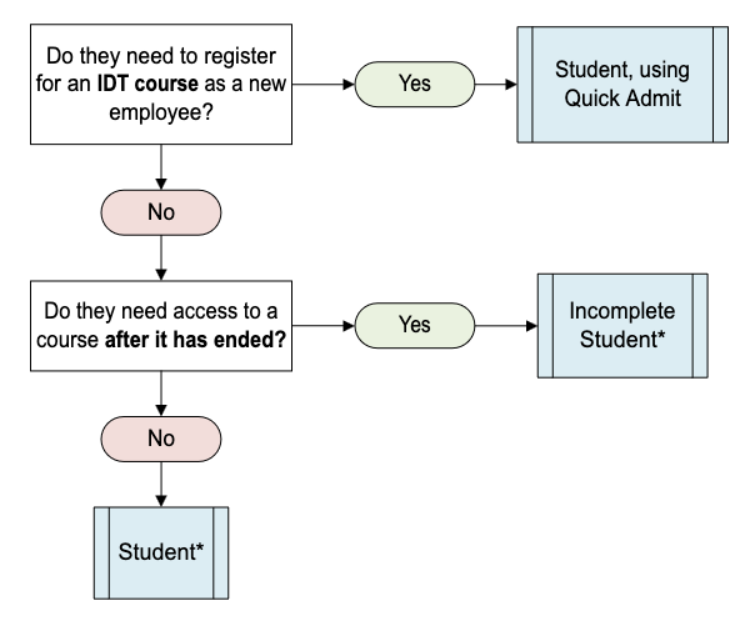
Quick Admit can be used by new DTCC instructors who also need their myDTCC account created. Students and Incomplete Students are automatically enrolled into the LMS with proper Banner registration. For the incomplete student role, do not adjust the end date of your course. Only adjust content or assignment availability and due dates as needed.
External Collaborators
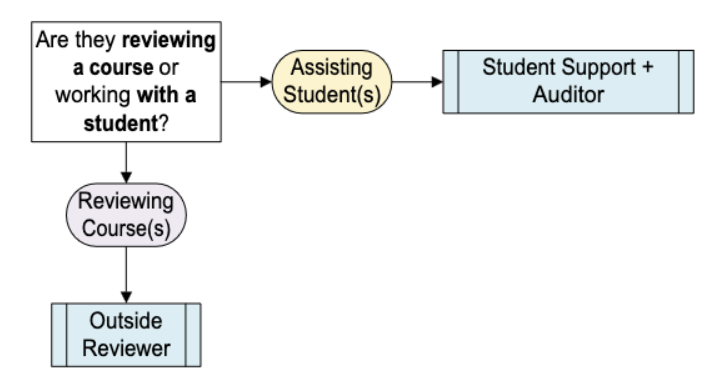
Outside reviewers can be outside consultants or accreditation personnel. With the Student Support + Auditor role, paraprofessionals can view the course content and their assigned student’s work.
DTCC Employees: Live Courses
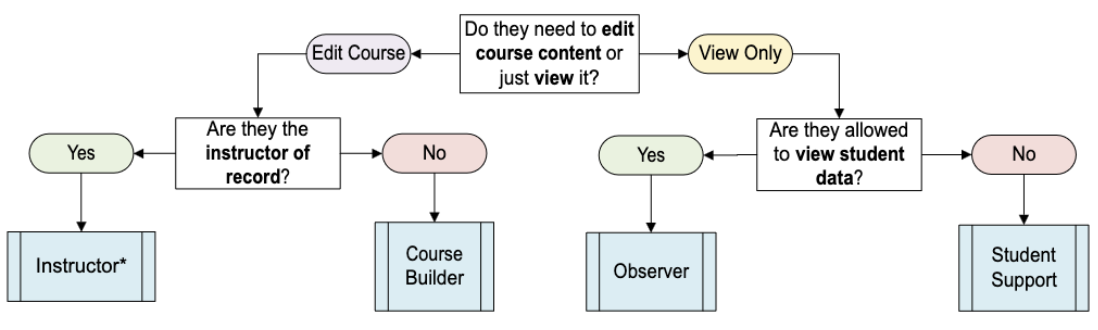
“Live” courses are those that students see and interact with throughout the semester. Instructors are enrolled automatically through proper registration in Banner.
DTCC Employees: DEV/Master Courses
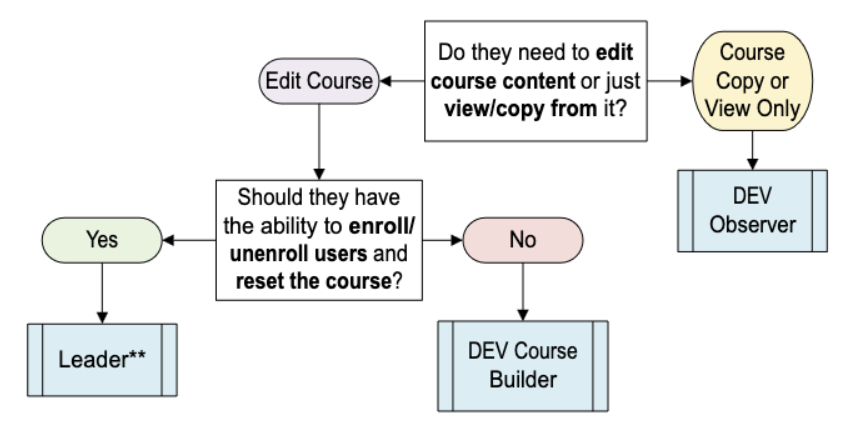
DEV/Master courses are course shells used to plan out and design a course. They are then copied into Live courses to lessen the workload and maintain consistency across sections. DEV Course Builders and DEV Observers share the same permissions as their counterparts, Course Builder and Observer. However, DEV Course Builders and DEV Observers appear on the Classlist for easier DEV/Master Course access maintenance.