Lunch and Learn
Join us for Lunch and Learn on Thursday, December 11 at 11:30am. Technology can support learning, but it cannot replace the warmth, presence, and encouragement that come from a real educator. In this hands-on session, discover simple ways to use Brightspace video and audio feedback, Padlet check-ins, and short surveys to build stronger connections with your students. Leave with practical tools that help your learners feel seen, supported, and part of a community.
January Professional Learning
On January 8, between 9:00 and 3:30, faculty can choose from sessions designed to elevate teaching, strengthen student engagement, and streamline course workflows. Topics include building accessible digital content, using Brightspace data to guide instruction, creating meaningful student dialogue in any modality, and discovering time-saving tools to lighten your load. Participants will also have the opportunity to exchange practical teaching strategies with colleagues and gather fresh ideas for spring. Join us to learn, connect, and leave with ready-to-use approaches that enhance student success. For more information, visit the Professional Development Calendar.

Format Painter
The Format Painter in D2L Brightspace can save you time and keep your course content looking consistent. If you’ve ever struggled with mismatched fonts or spacing, this tool is a simple fix. In just a few clicks, you can copy and apply formatting across announcements, content pages, and other course items. It’s an easy way to give your course a clean, polished look without the extra work.
Watch our quick 5 Minute Sound Byte and try out the Format Painter the next time you’re working in D2L Brightspace. For more 5 Minute Sound Bytes, check out our YouTube Playlist.


Copilot
Did you know that you can start using Copilot across any of our Microsoft tools? This powerful AI assistant is available to all faculty and staff. Copilot is integrated into Microsoft 365 tools like Word, Excel, Outlook, and Teams, helping you work smarter and faster. It’s designed to enhance productivity, creativity, and collaboration across departments. Whether you’re drafting documents, analyzing data, organizing emails, or planning meetings, Copilot can assist with real-time suggestions, summaries, and automation.
CCIT encourages everyone to explore Copilot and see how it can support your daily tasks and teaching goals. If you need help getting started, just reach out to CCIT!

Email Announcements to Your Classlist
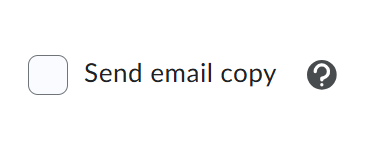
A new feature in D2L Brightspace makes it easier than ever to keep students informed and engaged. When creating or editing a course announcement, instructors can now select a “Send Email Copy” checkbox to email the announcement directly to all users in the Classlist. The email appears as if it came from the instructor, helping to strengthen instructor presence and build a more personal connection with students. This ensures that even learners who aren’t subscribed to announcement notifications receive important updates in their inbox. For scheduled announcements, the email is sent at the time the announcement is published, so students never miss critical information. By reaching students through multiple channels, this feature can increase engagement and improve communication throughout the course. Try this new feature and make announcements more impactful!

Accessibility Checkers
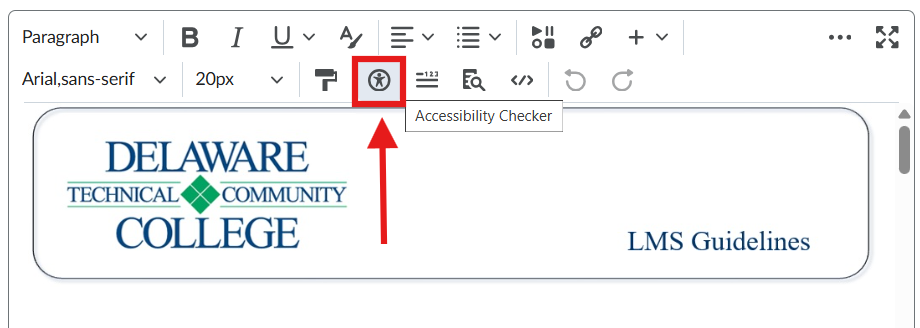
Did you know that D2L Brightspace, Microsoft Word, PowerPoint, and Excel all include built-in accessibility checkers? These easy-to-use tools help identify and fix common accessibility issues, such as missing alt text, poor color contrast, or unclear headings. These checkers are designed to be user-friendly so you don’t have to be a tech expert to use them effectively. You can make your documents, presentations, and HTML pages more inclusive with just a few clicks! By taking a few minutes to run an accessibility check, you can significantly improve the learning experience for all students, including those using assistive technologies.
CCIT encourages you to make accessibility a regular part of your content creation process and wants to support you in creating accessible content. For more information visit the CCIT Digital Accessibility page or check out our IDT certificate program.

Clipchamp
Looking for an easy way to record and caption a video? All Delaware Tech employees have access to Clipchamp, Microsoft’s video editor. Because Clipchamp comes with our Office 365 subscription, you won’t run into paywalled features like you might with other video editing tools. Clipchamp allows you to record your camera or screen and edit your recording when you finish. Additionally, Clipchamp allows you to automatically generate captions that require minimal editing.
To learn more about recording and captioning with Clipchamp, watch the Clipchamp segment from our November 6 Lunch & Learn (approximately 10 minutes.) You can also read our directions for recording a screencast or visit the Clipchamp support center for more information.